
How to Check 404 Errors and Protect Your Website Traffic

To get a handle on your 404 errors, you really need to attack the problem from a few different angles. Relying on just one method, like Google Search Console, won't cut it. A solid audit involves a mix of tools—site crawlers, server log analysis, and GSC—to paint a complete picture of every broken link, whether it's internal or from an external source.
Why 404 Errors Are More Than Just a Technical Glitch

That "Page Not Found" message might seem like a small hiccup, but it’s a silent killer for growth. Think about it: you’ve just launched a new site, traffic is finally starting to climb, but a chunk of those hard-won visitors are hitting a brick wall. This isn't just an inconvenience; it's a direct hit to your bottom line.
Every single 404 error is a broken promise. It tells a user you're not paying attention, and it can stop their journey cold, eroding trust and sending your bounce rate through the roof. For a startup trying to build a reputation or an e-commerce site trying to make a sale, these dead ends are poison. They practically scream "this site is poorly maintained," sending potential customers straight to your competition.
The Hidden Business Cost of Broken Links
The damage doesn't stop with frustrated users. Search engines see a high number of 404s as a sign of a low-quality, neglected site. This can directly harm your search rankings, waste your crawl budget, and make it much harder for new people to find you in the first place. All that valuable link equity you worked to build? It can evaporate if those backlinks now point to nowhere.
And it's not just your own internal mistakes you have to worry about. The game is changing with AI-powered search. A recent Lumar industry news report highlighted a shocking study from Ahrefs: AI search tools direct users to 404 pages at nearly triple the rate of traditional Google Search. ChatGPT was the biggest culprit, sending 1% of its traffic to dead links.
This means that even if your own site structure is perfect, external sources are actively creating a poor experience for your users. The takeaway is clear: checking for 404 errors is no longer just good housekeeping. It's a critical, ongoing business function.
A 404 error isn't just a technical issue—it's a direct threat to your revenue, reputation, and search visibility. Ignoring them means you're letting your conversion funnel leak.
Let's break down exactly how these errors hurt your business across the board.
How 404 Errors Impact Your Key Business Metrics
Here's a quick look at how 'Page Not Found' errors directly harm critical areas of your business performance.
| Business Area | Direct Impact of 404 Errors |
|---|---|
| User Experience (UX) | Creates frustration, increases bounce rates, and damages brand trust. |
| SEO & Rankings | Wastes crawl budget, diminishes link equity, and signals poor site quality to search engines. |
| Sales & Conversions | Interrupts the customer journey, leading to lost leads and abandoned shopping carts. |
| Marketing ROI | Devalues paid ad campaigns and content marketing efforts that drive traffic to dead pages. |
| Brand Reputation | Makes your site appear unprofessional, outdated, and unreliable to visitors. |
As you can see, the ripple effects of a simple "not found" message are significant. Proactive monitoring is the only way to protect your website's health.
This focus on maintenance is part of a bigger picture. Just as you'd fix a broken link, you should also ensure your site is secure from threats. For a deeper dive, take a look at these security best practices for web applications. At the end of the day, a well-maintained site is one that people can trust—and one that actually makes you money.
Your Practical Toolkit for Finding Every Broken Link

If you really want to check 404 errors thoroughly, you can't just rely on one method. A single tool only shows you part of the story, and you'll inevitably miss things that are hurting your user experience and SEO. The only way to get a complete picture is to build a small toolkit that attacks the problem from different angles.
Think of it like getting three different perspectives on your website's health. You have what the search engines see, what's actually happening inside your site's structure, and then the raw, unfiltered data of every single request hitting your server. Each view uncovers different kinds of broken links, and when you combine them, you won't miss a thing.
Use Google Search Console for Indexed Pages
Your first port of call should always be Google Search Console (GSC). It’s free, it's straight from the source, and it's the fastest way to find 404s on pages Google has already tried to index.
Just head over to the Pages report, which you’ll find under the "Indexing" section in the sidebar. Google makes it easy, clearly listing every URL it couldn't find under the "Not found (404)" heading.
- What it's great for: GSC is brilliant for identifying broken links that have real SEO weight. These are pages Google once knew about, so fixing them is a high priority.
- Where it falls short: The catch is that GSC only reports on URLs it has seen. It won't catch broken links on brand-new pages it hasn't crawled yet, nor will it find broken internal links pointing to a non-indexed URL.
Still, this report is your quick win. These are confirmed problems directly impacting how Google views your site's quality, so jump on them first.
Run a Full Site Scan with a Crawler
While GSC looks at what Google has already found, a site crawler proactively hunts for issues within your site. Tools like Screaming Frog (which has a fantastic free version) or the Ahrefs Site Audit work by mimicking a search engine bot, methodically following every single internal link they can find.
This process builds a comprehensive map of your site's architecture, and along the way, it flags any link that leads to a dead end. Say your "About" page accidentally links to /service/new-offering when the real URL is /services/new-offering. A human might not even notice the typo, but a crawler will catch it instantly.
A dedicated crawler is the only reliable way to maintain internal link health. It finds the broken pathways within your site that frustrate users and prevent search engines from discovering your important content.
Running a crawl is an absolute must-do before a new site launch and as part of your regular maintenance routine. It’s the best way to ensure visitors can move through your site without hitting frustrating dead ends.
Dive into Your Server Logs for Raw Data
For the most complete, unfiltered view of what's happening, nothing beats digging into your server logs. These logs are the ground truth—they record every single request that hits your server, including every last one that triggered a 404. This is where you find the ghosts that other tools can't see.
By analyzing the logs, you can spot all sorts of things: users trying to access old pages that were never redirected, common typos people make when typing your URLs directly, and even bots sniffing around for vulnerabilities.
Sifting through raw logs can get a bit technical, but the data is priceless. It shows you precisely what people (and bots) are looking for on your site and failing to find.
Uncovering the Hidden Threat of AI-Generated 404s

Have you noticed something odd in your analytics lately? Maybe a spike in referral traffic from AI tools that seems to go nowhere, paired with a rising bounce rate? If so, you’re not alone. We’re all dealing with a new kind of headache: what I call "phantom 404s."
This isn't some random server glitch. It's a real and growing problem where large language models (LLMs) like ChatGPT essentially "hallucinate" URLs. They invent links that look like they belong on your site—they often match your URL structure perfectly—but they point to pages that have never existed. A user gets this fabricated link, clicks it, and slams right into a "Page Not Found" error. It’s a frustrating dead end that you had no part in creating.
And this isn't just a theory. A fascinating study by SE Ranking found that ChatGPT generates broken links at a rate of 1.22%. That's nearly double the rate of Google's AI Overviews (0.56%) and standard organic search (0.65%). In their own case study, they discovered ChatGPT sent traffic to 70 different non-existent URLs on their site in just three months. You can dig into the full report on AI's impact on broken links at seranking.com.
Why Some Websites Are More Vulnerable
I've seen this happen more often with sites that have very predictable URL structures. Think about an e-commerce platform that uses a pattern like /products/[category-name]/[product-id]. It’s incredibly easy for an AI to guess at a plausible-sounding product and generate a completely fake—but realistic-looking—URL.
So, when you check 404 errors, you need to broaden your search. It’s no longer enough to just hunt down links you might have broken during a redesign. You now have to defend your site against errors that are being generated externally, bleeding away good traffic and chipping away at user trust. The tricky part is that these phantom 404s are often invisible to standard website crawlers because they don't originate from your own internal links.
Monitoring for 404s is no longer just internal housekeeping; it’s about defending your user experience from external AI-driven misinformation.
To actually catch these, you need to go deeper. Server log analysis and dedicated monitoring tools are your best friends here. They show you every single "not found" request that hits your server, no matter where it came from.
Actionable Steps to Combat AI-Generated Errors
You can’t stop an AI from making up a bad link, but you can absolutely control the damage. Here’s how I’d tackle it:
- Watch Your Referrals: Keep a sharp eye on your analytics. If you see traffic surges from AI platforms, immediately cross-reference those visits with your 404 logs. That’s where you’ll spot the patterns.
- Beef Up Your 404 Page: Your 404 page shouldn't be a dead end; it should be a recovery tool. Make sure it has a big, obvious search bar and links to your most popular content or product categories to help visitors find their way back.
- Redirect Strategically: If you see a particular phantom URL getting hit over and over, don't just let it 404. Set up a 301 redirect to the most relevant live page on your site. This simple step turns a frustrating error into a helpful detour.
By taking a more proactive stance, you ensure that even when an AI gets it wrong, your website can still guide users to the right place. It’s a smart way to protect both your traffic and your hard-earned reputation.
Alright, you've run your audit tools and now you're staring at a list of broken URLs. The discovery phase is over; the real work starts now.
Simply finding a 404 error isn't the finish line. The crucial next step is figuring out why the link is broken and choosing the right fix to protect both your user experience and the SEO authority you've worked so hard to build. This definitely isn't a one-size-fits-all situation.
Think of every broken link as a clue. Was it a product page for an item you no longer sell? A blog post you decided to delete? Or just a simple typo someone made while linking to another page on your site? Each scenario requires a different response. If you get it wrong—say, by redirecting an old, irrelevant page to your homepage just to get rid of the 404—you risk confusing users and search engines alike.
Choosing Your Redirection Strategy
Your two main tools for this job are the 301 redirect and the 410 Gone status code. They might sound technical, but their jobs are pretty straightforward.
A 301 redirect is your go-to when a page has permanently moved. It tells search engines, "Hey, this content isn't gone, it just lives over here now." This is perfect because it passes most of the original page's SEO value to the new URL. Use it when you've updated a piece of content, consolidated two posts into one, or have a clear replacement for a retired product.
For example, if your old post at /blog/old-post-title has been refreshed and now lives at /blog/updated-post-title, a 301 is the perfect solution. It makes the transition seamless for both visitors and search engine crawlers.
Then there's the 410 Gone. This one is more definitive. You use it when you've intentionally deleted a page and have no plans to replace it. A 410 sends a much stronger signal to Google than a 404, telling it to remove the page from its index more quickly. It's the cleanest way to prune old, irrelevant content that no longer serves a purpose.
Making these kinds of code-level changes often involves version control. If you're managing a project that's moving from no-code to code, learning how to update a GitHub repository is a foundational skill for keeping track of these updates.
The real goal isn't just to make the 404 disappear. It's about respecting the user's intent. A good redirect guides them to the next best thing, saving their journey and preserving your site's credibility.
To help you decide on the best course of action, here’s a quick comparison of the most common HTTP status codes you'll be working with.
Choosing the Right Fix for Broken Links
A practical comparison to help you decide how to handle different types of 'not found' URLs for the best SEO and user experience.
| Status Code | Best Used For | SEO Impact |
|---|---|---|
| 301 Permanent Redirect | A page has moved for good. Use this for updated content, site migrations, or when a product has a direct replacement. | Passes ~90-99% of link equity to the new URL. The old page is eventually de-indexed. |
| 410 Gone | Content has been intentionally deleted and will not be replaced. | Tells search engines to de-index the URL quickly. Much stronger signal than a 404. |
| Custom 404 Page | For URLs that don't exist and have no relevant replacement. This is your safety net for typos or expired links. | No link equity is passed. The page remains a "not found" error, but a good custom page can prevent users from leaving. |
Choosing the right response shows both search engines and users that you're actively maintaining a high-quality, helpful website.
Turn Your 404 Page into a Recovery Tool
Let's be realistic: no matter how meticulous you are, some visitors will still hit a 404 page. Think of this not as a failure, but as your last chance to win them over. A generic "Not Found" message is a dead end that practically begs people to leave.
A great 404 page, on the other hand, is a helpful guide. It acknowledges the problem and immediately offers a solution.
Instead of a digital stop sign, transform your 404 page into a mini navigation hub. An effective custom page should always include:
- A big, obvious search bar: This puts the user back in control, letting them immediately search for what they wanted.
- Links to your most important pages: Don't make them guess. Guide them toward your homepage, blog, most popular product categories, or your contact page.
- A clear, on-brand message: Use your brand's voice to apologize and offer help. A bit of personality can easily turn a moment of frustration into a memorable (and positive) brand interaction.
By putting these fixes in place, you're doing more than just tidying up your website. You’re building a more resilient, user-friendly experience that protects your traffic and turns a potential dead end into a new beginning.
How to Prevent 404s During a Website Migration
A website migration can be one of the most nerve-wracking experiences for any business owner. If you don't handle it with absolute precision, you risk unleashing a tidal wave of 404 errors that can decimate your SEO rankings. This is especially true when moving from a no-code platform like Bubble to a custom-coded website, as URL structures almost always change. The only way to safeguard your traffic and user trust is to plan ahead.
This process starts long before you even think about launching the new site. The first thing on your to-do list should be a complete inventory of every single URL on your current website. I usually use a tool like Screaming Frog to crawl the entire site and generate a comprehensive list of all pages. This list is your foundation for a smooth migration.
Create a Comprehensive Redirect Map
Once you have that full URL inventory, it’s time to build a redirect map. This is typically just a spreadsheet, but it’s one of the most critical documents in the whole process. It meticulously pairs every old URL with its new destination, essentially giving search engines a change-of-address notice for your entire website.
Your map should have three key columns:
- Old URL: A complete list of every URL from your site crawl.
- New URL: The new, corresponding address for each page on the new site.
- Status Code: Mark each one as a 301 (Permanent Redirect).
This map becomes your single source of truth, ensuring no page gets left behind. Without it, you're setting yourself up for link rot, a problem that’s only getting worse. A recent study found that 25% of all web pages from 2013-2023 were inaccessible by late 2023, with 16% of that decay coming from broken individual pages. You can dig into the data yourself in the full Press Gazette trends report.
The process of moving from a design to a live coded site has a lot of moving parts, but a rock-solid redirect strategy is non-negotiable. We cover more of this in our guide on how to transform a web design to a functional coded site.
A migration without a redirect map isn't a strategy—it's a gamble. Every forgotten URL is a guaranteed 404, a lost visitor, and a negative signal to Google.
Implement and Monitor Post-Launch
After your new site goes live, you need to implement all the redirects from your map. This is almost always done at the server level, which ensures that any request for an old URL is automatically sent to its new home.
But you can't just set it and forget it. The final, and arguably most important, step is to relentlessly check 404 errors in the days and weeks after launch. Keep a close eye on Google Search Console and your server logs to catch anything that might have slipped through the cracks. This post-launch vigilance is what separates a seamless transition from a complete SEO disaster.
This simple flowchart breaks down the core process, whether you're in the middle of a migration or just doing routine maintenance.
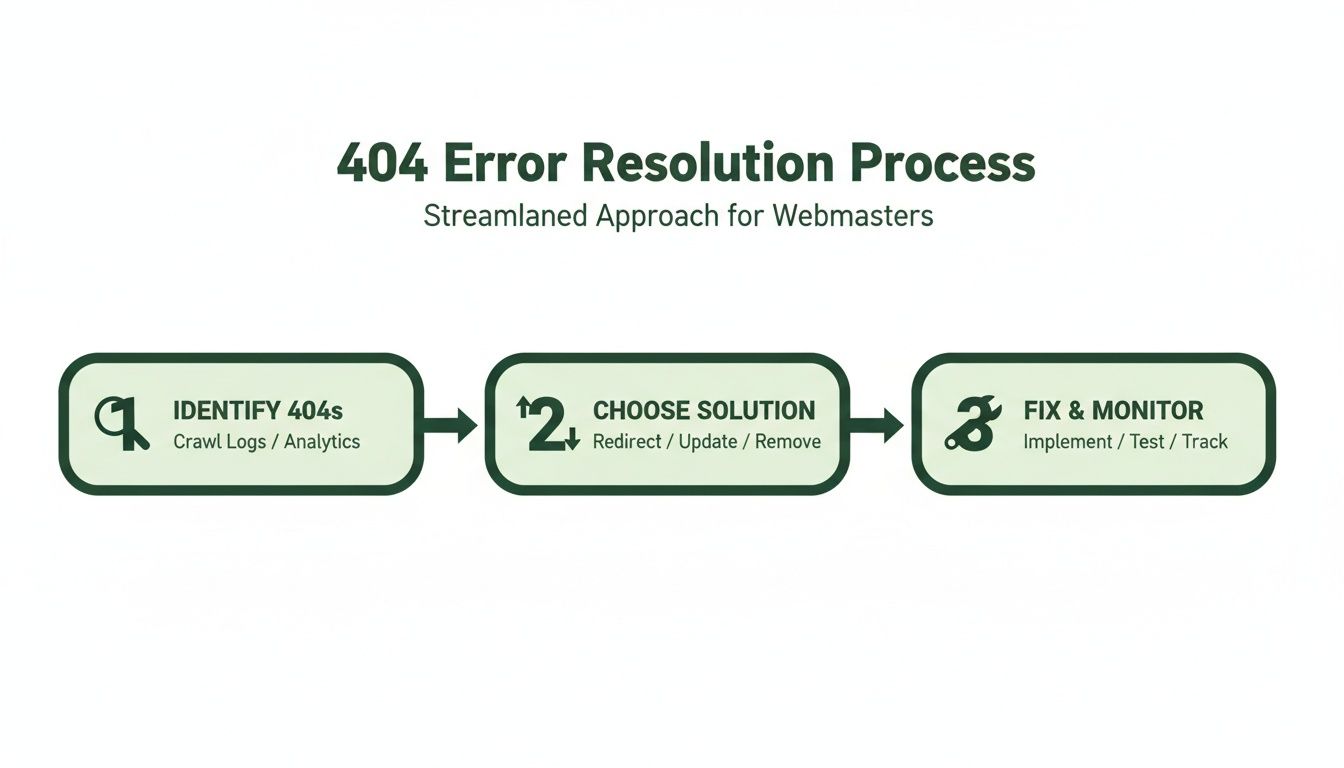
It really comes down to a systematic approach: find the broken links, figure out the right fix (like a 301 redirect), and then get that solution implemented.
Answering Your Questions About 404 Errors
When you start digging into 404 errors, a lot of questions pop up. Getting straight answers is key to building a solid site maintenance routine and truly understanding how these broken links affect your website.
Let's clear up some of the most common questions I hear.
How Often Should I Check for 404 Errors?
Honestly, it depends on how active your site is.
For most small or medium-sized websites, running a full site crawl once a month is a great starting point. It’s like a regular health checkup that keeps you on top of things without becoming a huge chore.
However, if you’re running a large e-commerce store with thousands of products or constantly pushing out new blog posts, you'll want to check at least weekly. This helps you catch problems before they pile up and start causing real headaches for users and search engines.
My Personal Rule: Always, always run a full 404 audit right after any big site change. I'm talking about a redesign, a platform migration, or a major content purge. Don't skip this.
Will a Few 404 Errors Hurt My Google Ranking?
Not really. Google knows that the web is always changing. A few isolated 404s are completely normal and won't tank your rankings overnight. They're just a sign of a website evolving as pages are added and removed.
The problem starts when you have a lot of them. A high number of 404s, especially on important pages or pages with valuable backlinks pointing to them, tells search engines your site is neglected. This can hurt your crawl budget and slowly chip away at your site’s authority.
What Is a Soft 404?
This one is important. A soft 404 is tricky because it looks like an error to a user but not to a search engine.
A standard 404 error is straightforward: it tells browsers and bots that a page is gone by returning a 404 Not Found status code. It’s the correct signal.
A soft 404 is when a non-existent URL loads a page that says "Not Found" but the server sends back a 200 OK status code. This is confusing because you're telling Google the page exists and is working fine when it’s actually empty or an error. Always fix these by making sure your server returns a proper 404 or 410 code for any content that's been removed.
Are you tired of your no-code MVP hitting a wall? First Radicle specializes in migrating fragile no-code projects to robust, production-grade software in just six weeks. We'll help you build a scalable foundation that cuts costs and positions you for growth. Learn more at First Radicle.