
A Practical Guide to Restore Database SQL Server
Knowing how to restore a SQL Server database is much more than a technical exercise—it's one of the most critical parts of keeping a business running. For any team moving past the early startup phase, a bulletproof restore plan is the ultimate safety net. It’s what stands between you and data loss, corruption, or a complete system meltdown. Getting this right means your application can bounce back quickly, protecting your users' trust and your company's reputation.
Why Mastering Database Restores Is a Business Lifeline
Picture this: a founder builds a project, it goes viral overnight, and suddenly user sign-ups are through the roof. Then, the system buckles under the pressure. The only way forward is to restore the data onto a more robust, production-ready SQL Server. This isn't some far-fetched scenario; it happens all the time. It really drives home the point that your ability to restore a database is directly tied to your business's ability to survive. If you don't have a solid plan, you're not just risking data—you're risking everything.

This kind of nightmare has played out for countless teams when a restore operation fails right when they need it most. In fact, a shocking 68% of database downtime incidents in larger companies come from botched restores. I’ve seen some SQL Server instances take over 48 hours to get back online. You can find plenty of war stories about this on forums like SQLServerCentral. This is also where truly understanding the difference between a database and a server becomes essential for planning your infrastructure.
The Core Concepts of a Solid Recovery Plan
Before you can build a reliable restore strategy, you have to get a handle on the key concepts that define it. Think of these less as technical jargon and more as business promises that set your tolerance for downtime and data loss.
- Recovery Point Objective (RPO): This answers a simple question: "How much data can we afford to lose?" If you set an RPO of 15 minutes, it means your backup and restore plan must ensure you never lose more than 15 minutes of data, no matter what happens.
- Recovery Time Objective (RTO): This one is all about speed: "How quickly do we need to be back online?" An RTO of one hour means your entire restore process, from the moment disaster strikes to the moment you're fully operational, has to be done within 60 minutes.
Your RPO and RTO aren't just IT metrics; they are direct promises to your users and stakeholders. Missing them can have serious financial and reputational consequences.
Understanding the Backup Building Blocks
Hitting your RPO and RTO targets comes down to one thing: your backup strategy. SQL Server gives you a few different tools, and each backup type plays a specific role in your recovery chain. A truly effective plan almost always uses a combination of all three.
SQL Server Backup Types at a Glance
A good restore starts with a good backup. Here's a quick comparison of the three essential backup types and how they fit into a restore strategy.
| Backup Type | What It Backs Up | Best Use Case | Restore Speed |
|---|---|---|---|
| Full | The entire database—all data, objects, and even part of the transaction log. | The foundation of any recovery plan. Usually taken daily or weekly. | Slowest to create, but it gives you a complete, single-file starting point for a restore. |
| Differential | Only the data that has changed since the last full backup. | Bridges the gap between full backups to speed up recovery time. | Faster to back up than a full. Requires the last full backup to be restored first. |
| Transaction Log | All transactions recorded since the last log backup was taken. | Crucial for point-in-time recovery and minimizing data loss (low RPO). | The fastest and most frequent backup, making it essential for critical databases. |
In short, you can't have a fast, precise restore without the right mix of backups. The full backup is your baseline, differentials get you closer to the present, and transaction logs fill in the final gaps.
Using the SSMS GUI to Restore a Database
For a lot of folks, writing T-SQL commands from scratch feels like a chore, especially under pressure. That's where SQL Server Management Studio (SSMS) really shines. It gives you a guided, visual way to restore a database in SQL Server, which is a whole lot more approachable. It’s perfect for common tasks like refreshing a staging environment or quickly getting a single database back online without touching a line of code.
The SSMS interface turns a complex operation into a simple series of clicks and choices. This graphical approach practically eliminates the risk of a typo derailing your restore, something that can easily happen with T-SQL scripts. It's a reliable and safe way to get started, so let’s walk through a typical scenario.
Getting Started with the Restore Database Wizard
Let's imagine you just pushed a big feature to production. Now, you need to get your staging environment in sync by restoring a copy of the live database. You've got your latest full backup (.bak) file on hand and you're ready to go.
First things first, connect to your target SQL Server instance in SSMS. In the Object Explorer on the left, find the Databases folder, right-click it, and choose Restore Database. This brings up the main restore wizard, your command center for the whole process.
On this first screen, you'll select Device and then browse to find your .bak file. As soon as you add it, SSMS intelligently inspects the file and shows you all the backup sets contained within it. This visual timeline is a lifesaver, making it easy to see the full, differential, and log backups you have available.
Configuring Your Restore Options
After you've picked your backup source, click on the Options page in the left-hand navigation. This is where the real magic happens, letting you fine-tune the restore for your exact situation.
Here are a couple of the most important settings you'll encounter:
Overwriting the Existing Database: If you’re refreshing a staging database, you absolutely need to check the box for "Overwrite the existing database (WITH REPLACE)". This tells SQL Server you’re giving it permission to wipe the old database clean. If the database already exists and you forget this step, the restore will fail.
Handling Active Connections: Ever seen that dreaded "database in use" error? It's a classic roadblock. To get around it, check the box for "Close existing connections to destination database". This will politely (or not-so-politely) kick out any users or applications connected to the database, giving SSMS the exclusive access it needs.
Pro Tip from the Trenches:
If you're restoring over a production database due to an issue, always, always take a tail-log backup first. This captures every transaction that happened since your last scheduled log backup, preventing you from losing those last few minutes of precious data. You can do this right from the "Options" page by selecting "Take tail-log backup before restore."
The Final Checks and Kicking Off the Restore
One of the best parts of using the SSMS wizard is its built-in safety net. Before you hit the big green button, head back to the General page and click "Verify Backup Media". SQL Server will do a quick check on the backup file to make sure it's not corrupted. This simple check can save you a world of hurt by confirming the file is readable before you start the actual restore.
With everything configured, you have two ways to proceed:
- Click OK: This immediately starts the restore. SSMS will show you a progress bar so you know it's working.
- Click Script: This is my personal favorite. SSMS will generate the T-SQL script that performs the exact restore you just configured in the GUI. It's a fantastic way to learn the T-SQL syntax or to save the script for later use in an automated job.
Using the SSMS wizard provides a clear, controlled path for database restores. It’s the go-to method for one-off tasks or for anyone who prefers a visual guide to ensure everything goes smoothly.
Advanced Recovery Scenarios Using T-SQL Commands
While the SSMS interface is great for a quick, straightforward restore, you’ll absolutely run into situations that demand more precision and control. This is where getting comfortable with Transact-SQL (T-SQL) really pays off. Writing your own RESTORE commands gives you fine-grained control over the entire process, making it essential for complex recovery sequences or for scripting repeatable database refreshes.
Honestly, learning the T-SQL RESTORE syntax isn't just an academic exercise; it's a core skill for anyone serious about SQL Server administration. Whether you're scripting a disaster recovery plan or automating the refresh of a dozen test environments, T-SQL is the tool that gets it done right.
This visual gives you a high-level look at the a typical database restore flow.
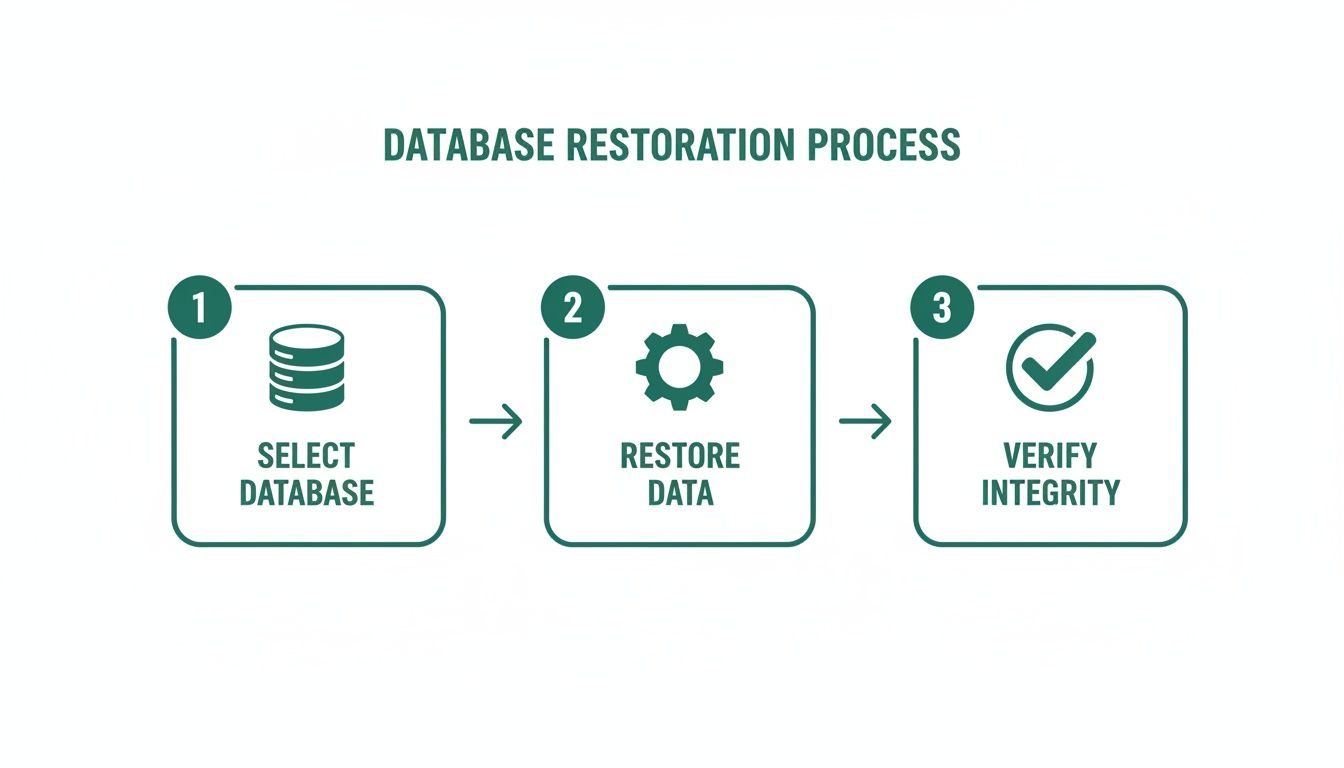
It breaks the process down into the core stages—selecting your backups, running the restore, and then verifying the outcome. This fundamental pattern is the same whether you use the GUI or T-SQL.
Chaining Restores with NORECOVERY and RECOVERY
If there's one concept to master in T-SQL restores, it’s the difference between the NORECOVERY and RECOVERY states. Getting this wrong is a classic pitfall that can completely derail your effort. In the high-stakes world of keeping a production system online, a single mistake here can have massive consequences.
I've seen it happen. Historical data from some major markets showed that over 55% of production outages could be traced back to improper recovery states during a restore. Teams simply failed to chain their backups correctly, which led to painful, extended downtime. You can dig into the official mechanics in the guide on restoring a database backup on Microsoft Learn.
Let’s get this straight:
WITH NORECOVERY: This option leaves the database in a "Restoring..." state. It’s totally inaccessible to users, but it's ready for you to apply more backups, like a differential or a series of transaction logs. You have to use this for every restore step except the very last one.WITH RECOVERY: This is your final step. It brings the database fully online, rolls back any uncommitted transactions, and makes it available for use. Once you run this command, you can't apply any more backups to it.
Let's say you have a full backup, one differential, and two transaction log backups to apply. The T-SQL sequence would look exactly like this:
-- Start with the full backup, leaving the database in a restoring state
RESTORE DATABASE YourDB
FROM DISK = 'C:\Backups\YourDB_Full.bak'
WITH NORECOVERY;
GO
-- Apply the differential backup
RESTORE DATABASE YourDB
FROM DISK = 'C:\Backups\YourDB_Diff.bak'
WITH NORECOVERY;
GO
-- Apply the first transaction log
RESTORE LOG YourDB
FROM DISK = 'C:\Backups\YourDB_Log1.trn'
WITH NORECOVERY;
GO
-- Apply the second transaction log and bring the database online
RESTORE LOG YourDB
FROM DISK = 'C:\Backups\YourDB_Log2.trn'
WITH RECOVERY;
GO
This careful, step-by-step process is the key to successfully restore a database in SQL Server when you're working with multiple backup files.
Point-in-Time Recovery to Reverse a Mistake
What happens when a developer accidentally drops a critical table at 2:15 PM? You can't just restore to the last backup from midnight; you need to get back to the exact moment before the disaster. This is where a point-in-time recovery, using the WITH STOPAT clause, becomes a true lifesaver.
To pull this off, you restore your full and any differential backups using WITH NORECOVERY as usual. Then, you apply transaction log backups—also with NORECOVERY—up to and including the one that contains your target time. On that final log restore, you tell SQL Server the exact moment to stop.
-- Restore the last full backup
RESTORE DATABASE YourDB
FROM DISK = 'C:\Backups\YourDB_Full.bak'
WITH NORECOVERY;
GO
-- Restore the transaction log that contains the error, stopping right before it happened
RESTORE LOG YourDB
FROM DISK = 'C:\Backups\YourDB_Log_2PM_to_3PM.trn'
WITH STOPAT = '2023-10-27T14:14:00', -- Stop at 2:14 PM, just before the 2:15 PM oops
RECOVERY;
GO
This kind of precision is something you can only achieve with T-SQL. It lets you minimize data loss down to the second. Properly managing this process is a vital part of any solid database version control strategy.
Using STANDBY for Mid-Restore Verification
Sometimes, you need to check on the data between log restores without finishing the whole process. The WITH STANDBY option is perfect for this. It brings the database online in a read-only state and creates a special "undo" file.
Using
WITH STANDBYis like getting a temporary, read-only window into your restore process. It lets you runSELECTqueries to inspect the data. When you're ready to apply the next log, SQL Server uses that undo file to put the database right back into its restoring state, so you can continue the chain.
This is incredibly useful for forensic work or just for verifying that a specific transaction exists before you complete the full recovery. It gives you a "peek inside" that can save hours of guesswork.
-- Restore a log and bring the database up in a read-only state
RESTORE LOG YourDB
FROM DISK = 'C:\Backups\YourDB_Log1.trn'
WITH STANDBY = 'C:\Undo\YourDB_undo.ldf';
GO
-- At this point, you can run SELECT queries against YourDB to check things out.
-- When you're ready, restore the next log to continue the process and finish up.
RESTORE LOG YourDB
FROM DISK = 'C:\Backups\YourDB_Log2.trn'
WITH RECOVERY;
GO
Getting a handle on these T-SQL commands gives you the flexibility and power to tackle just about any recovery scenario that comes your way.
Let's be honest, even the most carefully planned database restore can go sideways. SQL Server's error messages can feel cryptic, and when you're under pressure to get a system back online, it's easy to get flustered. But here’s the thing: most restore failures are predictable and, thankfully, completely fixable.
The trick is to stop seeing them as roadblocks and start seeing them as common scenarios with well-defined solutions. From mismatched file paths to permissions headaches, let's walk through the stuff that actually happens in the real world.
Dealing with Different Servers: The WITH MOVE Lifesaver
One of the most common hurdles you'll face is restoring a database to a different machine. Maybe you're cloning a production environment for testing or migrating to a new server. You run the RESTORE command and... failure. Why? Because SQL Server is trying to put the database files in the exact same folder path they lived in on the old server. If that path doesn't exist on the new machine, it just gives up.
This is where the WITH MOVE clause becomes your absolute best friend. It’s not just an option; it's a mandatory tool for any restore to a new location. It lets you tell SQL Server exactly where to place the new data (.mdf) and log (.ldf) files.
First, you need to find out the logical names of the files inside the backup. You can peek inside the backup file without actually restoring it using this command:
RESTORE FILELISTONLY
FROM DISK = 'C:\Backups\YourDB.bak';
This will show you the logical names, probably something like YourDB_Data and YourDB_Log. Armed with that information, you can build a restore command that won't fail.
RESTORE DATABASE YourDB
FROM DISK = 'C:\Backups\YourDB.bak'
WITH
MOVE 'YourDB_Data' TO 'D:\SQLData\YourDB.mdf',
MOVE 'YourDB_Log' TO 'E:\SQLLogs\YourDB.ldf',
REPLACE,
RECOVERY;
See what we did there? We mapped each logical name to a new, valid physical path on the target server. This gives SQL Server precise instructions, guaranteeing a smooth restore no matter how different the server hardware is.
The "Oh No!" Moment: Why Tail-Log Backups are Critical
Picture this: your main production database gets corrupted and goes offline. The last transaction log backup you have ran 10 minutes ago. What about all the sales, sign-ups, or updates that happened in those crucial 10 minutes? Without a tail-log backup, they're just gone. Poof.
A tail-log backup is your emergency parachute. It's a special transaction log backup you take from a damaged database right before you begin the restore process, assuming the database is still online but inaccessible. It captures every single transaction that hasn't been backed up yet, right up to the point of failure.
Think of a tail-log backup as your database's "black box" flight recorder. It's your one last chance to salvage the final moments of activity, often making the difference between zero data loss and a really bad day.
You have to run this backup using the WITH NORECOVERY or WITH NO_TRUNCATE option. This is key because it tells SQL Server to just grab the log records without trying to perform a checkpoint, which would almost certainly fail on a broken database. This isn't just a good idea; it's a non-negotiable step in any serious disaster recovery plan.
Quick Fixes for Common Restore Headaches
File paths and tail-logs are big ones, but a few other pesky errors love to pop up at the worst possible time. I've seen them all. Here’s a quick-reference guide to help you diagnose and fix them fast, saving you from frantic Googling when every second counts.
Common SQL Restore Errors and Their Solutions
| Error Message (Simplified) | Common Cause | Quick Fix (T-SQL or SSMS Action) |
|---|---|---|
| "Database in use" | Someone is still connected, and SQL Server can't get the exclusive lock it needs. | Run ALTER DATABASE YourDB SET SINGLE_USER WITH ROLLBACK IMMEDIATE; before your restore. In SSMS, just check the "Close existing connections" box. |
| "Backup set is not valid" | The backup file is corrupt, from a newer SQL version, or got botched during a network copy. | First, run RESTORE VERIFYONLY to check the file's health. Also, confirm you aren't restoring a SQL 2022 backup to a SQL 2019 instance—that's a no-go. |
| "Access is denied" | The SQL Server service account doesn't have permission to read the folder where your .bak file is located. |
The easiest fix is to move the backup file to the server's default backup directory. Otherwise, you'll need to grant the service account read permissions on the folder. |
| "The file is too large" | You're out of disk space on the drive where the .mdf or .ldf files are supposed to go. |
Clear some space on that drive, or better yet, use the WITH MOVE command we just covered to point the files to a drive that has plenty of room. |
Knowing what to look for makes all the difference. When you can anticipate these common issues, you can turn a stressful data recovery event into a controlled, professional, and successful operation.
Essential Post-Restore Verification and Security Checks
Getting your database back online is a huge relief, but the job isn't quite finished yet. A successful RESTORE DATABASE command is just the first step. You've only truly succeeded once you've thoroughly checked the database's integrity and locked it down for production use.
Skipping these final steps is a classic mistake. It's like rebuilding an engine but never turning the key to see if it starts—you're leaving the most important part to chance.

This final checklist is your quality assurance gate. It ensures the data is not only present but also physically and logically sound, performant, and safe from common post-restore vulnerabilities.
Verifying Database Integrity and Data
First things first: check for corruption. This is your most critical post-restore action. Just because the restore process completed without errors doesn't mean the underlying backup file was perfect. Running DBCC CHECKDB is the gold standard for scanning for allocation errors, structural problems, and any logical inconsistencies.
DBCC CHECKDB (YourDB) WITH NO_INFOMSGS, ALL_ERRORMSGS;
This command will give you a clean bill of health or, if you're unlucky, pinpoint any lingering issues. If it comes back with errors, your backup was almost certainly corrupt. You’ll need to stop what you're doing and find an earlier, healthier backup to restore from.
Once you’ve confirmed the structural integrity, you need to perform some business-level checks. Don't just assume the data is correct. Run a few key application queries to confirm that business-critical data is actually there and makes sense.
- Can you find the most recent user sign-ups in the
userstable? - Does a query against the
orderstable show the latest transactions you expect? - Is all your custom application configuration data present and correct?
This kind of sanity check is invaluable. It ensures the restore point meets your recovery objectives and that no subtle, unexpected data loss occurred.
Fixing Security and Performance Settings
Here’s a common "gotcha" that trips up even seasoned DBAs: when you restore a database to a new server, the security principals almost always break. The database users are carried over, but they lose their connection to the server's logins. This creates what are known as orphaned users—a major security risk and a frequent cause of application connection failures.
An orphaned user is a security ghost—a user account inside your database with no corresponding login at the server level. This means no one can actually use that account to log in, effectively locking them out.
You can find and fix these pretty quickly. Running the system stored procedure sp_change_users_login with the Auto_Fix parameter is a common and effective way to relink database users to server logins that share the same name. Fixing these broken links is an essential part of post-restore hygiene and a key step in upholding strong security best practices for web applications.
Finally, let's talk performance. A freshly restored database often has stale statistics. This can fool the query optimizer into making terrible decisions, leading to painfully slow application performance right after you go live. Updating them is simple and can have a massive impact.
EXEC sp_updatestats;
It’s also a good idea to check the database's compatibility level. If you've restored a database from an older version of SQL Server onto a newer one, you might want to update the compatibility level to unlock the latest performance improvements available in the new engine.
Following this meticulous process turns a simple data recovery into a truly successful, production-ready state.
Got Questions About SQL Server Restores?
Even the most seasoned DBAs run into questions when it's time to restore a database. When the pressure's on, the details really matter. Let's walk through some of the most common things that come up and get you some clear, practical answers.
How Often Should I Be Backing Up My Database?
This is the big one, and the honest answer is: it depends entirely on your Recovery Point Objective (RPO). That’s just a formal way of asking, "How much data can the business afford to lose?" You need to have a real conversation with the business owners to pin this down.
For a high-traffic e-commerce site, for instance, you'll need an aggressive strategy to keep data loss to an absolute minimum. A solid, common approach looks something like this:
- Full Backups: Run these once a day, usually overnight when activity is lowest.
- Differential Backups: Schedule these every 4-6 hours. They catch everything that's changed since the last full backup.
- Transaction Log Backups: For critical systems, this is your lifeline. Backing up the logs every 15 minutes (or even more frequently) keeps your potential data loss window incredibly small.
On the flip side, a less critical internal wiki might be perfectly fine with just a single full backup every night. Your business requirements—not just technical defaults—should always be the driving force behind your backup frequency.
Can I Restore a Backup Onto an Older Version of SQL Server?
Nope. This is a hard and fast rule in the SQL Server world. You absolutely cannot restore a database backup from a newer version (like SQL Server 2022) to an older one (like SQL Server 2019). The internal file structures just aren't backward-compatible, and the restore will fail immediately.
You can, however, always go the other way—restoring a backup from an older version onto a newer one is no problem. If you’re ever in a jam and need to move data backward, you’ll have to ditch the backup-and-restore method. Instead, you'll be looking at data migration tools.
My Advice: When you need to move data to an older SQL Server version, your best bets are scripting out the schema and data with T-SQL, using the SQL Server Import and Export Wizard, or relying on a good third-party data sync tool. A straight
RESTORE DATABASEcommand is a non-starter.
What's the Real Difference Between NORECOVERY and RECOVERY?
Getting these two options right is probably the single most important concept in a multi-file restore sequence. Mixing them up is a classic mistake, and it often means you have to start the whole restore process from scratch.
Here's how I think about it.
Using RESTORE WITH NORECOVERY is like continuing to build with LEGOs. It applies a backup but leaves the database in a "restoring" state. It's not accessible, but it's ready for the next piece—your differential or log backup.
RESTORE WITH RECOVERY is like putting that final, smooth-top piece on your LEGO creation. It finishes the job. The database is brought online, any uncommitted transactions are rolled back, and it's ready for users. Once you use WITH RECOVERY, that's it. The restore chain is closed, and you can't apply any more backups.
Why Is My Database Restore Taking Forever?
A painfully slow restore is one of the most stressful situations you can face, especially during an outage. When a restore database SQL Server command feels like it's crawling, it’s usually one of a few common culprits.
Here's my checklist for troubleshooting a slow restore:
- I/O Bottlenecks: Where are the files coming from and going to? Restoring from a slow network share or onto an overworked local disk is the most frequent cause. Check your disk performance.
- A High VLF Count: Too many Virtual Log Files (VLFs) can absolutely murder your performance, especially during the recovery phase of the restore. This is a sneaky performance killer that many people don't think to check.
- Instant File Initialization (IFI): Is IFI enabled for the SQL Server service account? If not, SQL Server has to write zeroes to all the new data files before it can use them, which takes a huge amount of time for large databases. Enabling IFI is often a massive, easy performance win.
Running through these points will usually help you find the bottleneck and get things moving again.
Are you stuck with a fragile no-code MVP that can't handle real-world scale? At First Radicle, we specialize in migrating businesses from tools like Bubble and Webflow to robust, production-grade software stacks in just six weeks. We'll give you a scalable backend, full IP ownership, and the defensible technology you need to grow and secure funding. Stop hitting limits and start building your future.